Entertaiment PC: Software

meedio_logo.jpgThis is a continuation of a few older posts on the entertaiment PC.

Much of what I’ve done with software on this computer is based loosely on Jon’s system. The core to both of our systems is a little piece of software called Meedio Essentials… that unfortunately is no longer supported. They sold out to Yahoo back in 2006. Yahoo took the software and created Yahoo TV, which at this point in its development is an interior product. The community left over at Meedio have since spun off a new product/community called MeediOS. MeedioOS now houses many of the plugins and forums from the now defunct Meedio Essentials. So given that little history lesson on Meedio, I still use the final version of the software that was released before Yahoo got hold of it. If you really wanted to, you could still probably get your hands on a copy of it (cough p2p cough). The collection of entertainment PC software available now is actually much better than it used to be. There are quite a few options out there to chose from. There might even be something better than Meedio Essentials available now, but what I’ve got just works, and if it ain’t broke, don’t fix it.

meedio_screen.jpgOK, so what exactly does Meedio Essentials do? It is essentially the control to the entire entertainment pc. It hold the menus that you navigate using your remote and launches you into everything you want to do with the computer. There are serveral built in modules that I use on this system, and a lot of external programs that get launched via a command from Meedio. That’s the beauty of Meedio, it can call up just about anything on the computer and is endlessly customizable (with a little tweaking).

Photos
For photos, we use the built-in photo module in Meedio. It works like just about any photo viewer out there. You can browse photo by photo, or by collections. It includes a slideshow option and works with the remote to pull up your entire photo collection on the TV. I have Meedio pointing to a shared drive on our media server with all of our photos on it, but Meedio could just as easily point to a directory on the hard drive full of photos.

Music
As with the photo viewer, we use the built-in music player in Meedio. It is a pretty standard software music player. Also similar to the photos module, it is hooked to the media server where all of the MP3’s are hosted. It reads ID3 tags for file information, and will even take advantage of album art pulled from iTunes. You can sort by just about everything (artist, title, genre). There is also a nice full-screen visualization to throw up on the screen when you want to play a bunch of music and see something a little nicer than a list of songs running by.

DVD Playback
This is one of the areas where I have Meedio pointing to an external program. I’m currently using Zoom Player as the DVD player for the system. Meedio does have its own DVD module, but it isn’t that great. When a DVD is loaded or DVD is selected in the interface, Meedio just launches Zoom Player, and off it goes. The reason I use Zoom Player over the standard DVD module is that it has a lot more control over video settings and video acceleration. I have a video card that can handle much of the processing of playing a DVD, and handing that over to the card saves the CPU for other tasks. Plus when/if I end up getting a drive that can play HD-DVD or Blu-Ray discs, it will most likely need to be tweaked even more to handle the load that those formats put on the computer. It will also most likely take another software player. I believe PowerDVD Ultra is the only software HD/Blu-Ray player out there at the moment, but we’ll cross that bridge when/if we come to it.

TV/DVR
btvscreen_home.jpgThe Digital Video Recorder functionality for the entertainment PC isn’t handled by Meedio (even though Meedio does include a DVR module). I used to use SageTV for this function, but have recently switched over to BeyondTV. They both work really well in their core features (recording/playing back tv), but BeyondTV is just a cleaner interface, and has a few more bells and whistles built in where you would have to install a plugin for Sage. You can check out the features of BeyondTV at their site, or see what Jon had to say about it in his description. The things I like about BeyondTV is that it can handle HD (after the recent hardware upgrade). It also automatically creates chapter marks to skip commercials (Sage didn’t do this out of the box). I really like a new feature that was added with the most recent upgrade to version 4.7. You can set it to create an iPod compatible version of a show and it will set up an RSS feed to go with it. This allows you to point iTunes at the entertainment pc and automatically pull down video files for whatever tv series you’re currently watching (it can be all of them or just individual shows). We also have a handy plugin called BTV Podcatcher that pulls down video podcasts we subscribe to and drops them right in with our recorded TV shows. Again, the DVR area is a space where there are a lot of contenders making products, but so far BeyondTV has topped the list of products I’ve tried.

Others
There are a bunch of little odds and ends that Meedio also does well (and some things we do that aren’t part of Meedio). One of them is a weather module that gives quick access to forecasts and weather maps. Another piece of software that we’ve tied to Meedio is the Sling Box software. We use this to get our Iowa Hawkeyes football fix from AZ. Meedio just fires up the SlingPlayer software which launches full-screen and is controllable via remote control. The last “other” thing we do with the entertainment PC isn’t really worked into Meedio at this time. This could be a future project, but I’d like to be able to connect it to the Netflix “Watch Now” movies allowing us to watch streaming movies from Netflix. We do this now by firing up IE (only works with WMP and IE unfortunately) and navigating the Netflix site with our wireless mouse. It would be idea if there were some sort of remote controllable site to get to the watch now movies. I know there is a Meedio browser plugin that uses IE, but haven’t really had a chance to play with it on the Netflix site. We’ll see what happens on that front. Otherwise, that just about covers everything we use Meedio and the entertainment PC for. So far things have been working pretty well.

Cherry Chocolate Diet Dr. Pepper


Warning: Undefined property: stdClass::$pageInfo in /home/techoryc/public_html/blog/wp-content/plugins/fluid-video-embeds/fluid-video-embeds.php on line 681

Warning: Attempt to read property "totalResults" on null in /home/techoryc/public_html/blog/wp-content/plugins/fluid-video-embeds/fluid-video-embeds.php on line 681

Cherry Chocolate (rain) Diet Dr. Pepper viral marketing campaign = Great!


(based on the internet video Chocolate Rain)

Cherry Chocolate Diet Dr. Pepper (the drink) = Yucky!

cherrychocdrpepper.jpg

New Mentos Gum

mentos_gum.jpgMy dad (now a newly ‘minted’ Mentos Ambassador) found a new Mentos product right here in the US (normally the new crazy flavors come from over seas). He found some packs of Mentos Gum in a gas station in Iowa. I’ve had Mentos gum before. They used to make a product called “Mentos New Charge Gum,” but I haven’t seen if for quite a while. I even remember an even older Mentos gum that I bought (a case of) back in college. This product is the first time I’ve seen fruit flavored gum from them in the US. The packs I was provided were, mint, spearmint, and red fruit-lime. The mint flavors just taste minty like normal strong-mint gums. The red fruit-lime is interesting though, not only as the first fruit gum from Mentos, but because it has a soft liquid center. The gum part is red fruit, consisting of strawberry, raspberry, and cranberry with the liquid center making up the lime portion of the gum. I have to admit, it is pretty good (but I’m probably biased)!

Adding HD to the Entertainment PC

We got ourselves a brand new HDTV for a Christmas present this year. We’d been look at them for quite a while, and finally pulled the trigger the week before Christmas. With that purchase came some other upgrades to keep things working on our Entertainment PC (DVR, Photo Viewer, DVD Player, Sling Viewer, Super Computer). Everything worked fine without upgrades, but if we wanted to take advantage of high definition (the reason we bought the TV), we had to make a few changes.

The first issue I ran into was getting the PC to output to the new HD LCD display. That can be very interesting given that computer resolutions are different than TV resolutions. The LCD is connected to the computer with a DVI to HDMI cable. Standard resolutions from the video card weren’t cutting it so I started diving into “the google” to try and find another method of getting a custom resolution out of my video card. I ran across a great utility called PowerStrip that does this exact type of thing, only to realize that it doesn’t work with the integrated Intel graphics card I have in the computer (it came with the slim entertainment case). I then moved on to another great piece of software made specifically for the integrated Intel Graphics chipset called DTD Calculator. I got a bit further with this utility, but it still didn’t quite cut it. I was able to get the custom resolutions into the video options, but kept getting weird results whenever I tried one. The screen would get knocked to the corner and turn either green or purple. So after banging my head against a wall for a few days with that, I decided to just get a new (more powerful) video card that would help out decoding HDTV as well. I should have a new Radeon HD 2400PRO showing up in a few days. I chose this card because it was available in a low-profile card (needed to fit the case), and for the reviews it got handling HD video. It also has a straight HDMI port on it so I may be able to route audio through it as well. Hopefully this will take care of my not-quite-right resolution issues.

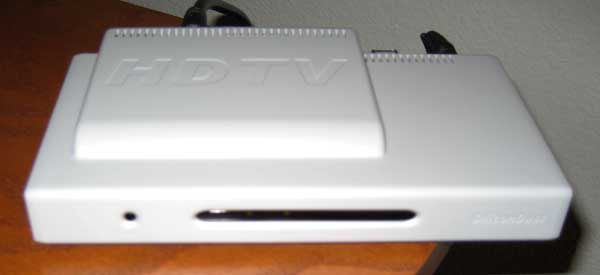
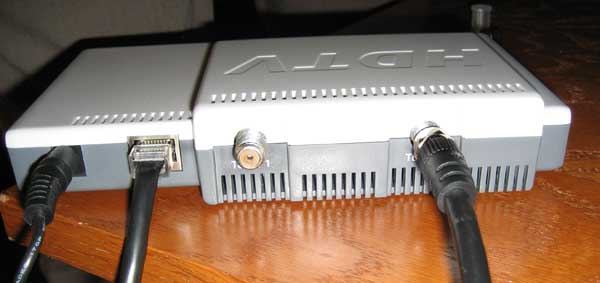
hdhr_top.jpgThe other issue I ran into (and maybe more important issue) was running an HDTV signal through this thing. Now, we don’t have a ton of HD channels to chose from at the moment, but there are several (mainly local) unencrypted QAM digital signals coming through the cable line. Several of those are in HD. The capture cards that are currently in the computer are just standard definition Hauppauge Win-TV150 low profile cards. hdhr_front.jpgThey still work and I still have cable going to them, but let’s get realistic… SD signal doesn’t look that great on an HD set. So we were still able to capture our shows and watch our captured shows, but since we were able to view HDTV we wanted to be able to capture/pause/rewind HDTV. In comes the HDHomeRun. There are a lot of digital HD Tuners to pick from, but I chose this one for several reasons. First, it allowed me to integrate the unencrypted QAM channels into the DVR software we’ve been using (BeyondTV). Second, it comes with two HD tuners built in, so it seemed a bit more future-proof than some of the single tuners I looked at. It also works a bit differently than many of the other HDTV tuners on the market. The only output it provides is an ethernet port, making it a networked HDTV solution if I should ever want to pipe tv through the house. It arrived earlier this week, and I couldn’t be happier with its performance.

hdhr_back.jpgThe box arrived, and let me tell you, there isn’t much to this thing. The device itself is a nondescript box about the size of a small router. It has a power light and a panel with several non-labeled LED lights on the front, and a power port, ethernet port, and two coax connectors on the back. The box contains an ethernet cable, two short coax cables, a power cable, and a card that points you to their site to download software. That’s right, it doesn’t even come with a manual. I guess that makes sense since they want you to have the most up to date version of software and firmware available. I believe that the software used to run this thing is open source as well. I got everything hooked up (I just used one of the tuners) and I was off. It took a little while for the computer to recognize the box via the ethernet port (I have an open port since the computer is using wireless to connect). I ran the install app, and once it saw the HDHomeRun, the software connected to the net and automatically updated the firmware. Then it does a scan of available digital channels. It picked up the same ones that we were getting with the TV’s built-in tuner so that was good. Then you can test them by using VLC, an open source media player. The picture looked great! I believe this is how you can send HDTV over the network as well. If this thing were plugged into my router, Ihdhr_box.jpg could fire up VLC and pull TV over a wired or wireless connection. I’ve read that even over wireless HDTV looks good. It was then on to configuring BeyondTV to pick up the HD signal. That process was a little tougher. It involved comparing the directory information available in BTV to what I was getting from the HDHomeRun and make sure everything matched up. There are even a few channels that we get, but aren’t part of the guide. That just means when we tune to those we don’t know what’s playing… which is fine. Once all that was configured the BeyondTV guide now has a new section (above all the SD channels) listing everything the all the digital signals it is pulling in. And it now does everything we were doing with standard deff signals on the HD signals. We can puase, rewind capture in HD now. I will say HD capture takes about 3 times the space that SD takes. We probably won’t be capturing a whole lot of HD shows right away. I might need to add a hard drive here pretty soon as well.

So far everything seems to be working well, minus the resolution issue on the LCD, but hopefully the new video card should take care of that. I’m pretty happy with the setup. Down the road I could see adding a Blu-Ray or HD-DVD player in place of the DVD-burner I have in there now. We’ll see where the format war goes, and how the prices on drives look. Until then we’ll be seeing the world (at least the channels we get) in HD!

AOL Kills Netscape

ripnetscape.jpgAfter being on life support for many many years, AOL has finally killed the web browser that started them all. AOL is pulling the plug on Netscape. There really hasn’t been much of a flutter from the browser for quite some time, and not it is officially done. AOL will be cutting off support in Feb ’08. It has been near death for quite some time with AOL disbanding their browser division again and again over the years just to release another (sad) version of the browser. The death nells began playing when Netscape sold to AOL back in 1999. The browser had a great history and thankfully the code was open-sourced and became the wonderful Firefox browser. Even though Netscape hasn’t been a player for a long long time, and AOL basically ran it into the ground quickly after purchasing it, it’s sad to see one of the big reasons the internet took off be put to rest.

R.I.P. Netscape Navigator 1994-2008

New Mentos (just in time for the holidays)

I received some new Mentos the other night from a few new Mentos Ambassadors (Ambassador Kilgore and Ambassador Brown). These Mentos came from China, so I’m going to have to guess on some of the flavors (because I don’t speak or read Chinese). One was a double-wrapped roll of lime mint which I have seen before. The other two were unique to my collection. One was a small box with a picture of a lime, an orange, and a grapefruit on the front with some some Chinese writing. I’m guessing these are just regular size Mentos in a smaller box. The last one was probably the most unique. It arrived in what looked like a vitamin jar. I think these one are gum with some sort of gooey center judging by the picture on the front. Again, it is hard to tell because there isn’t any english writing on these.

Flickr Edit Feature

flickr_edit.jpgFlickr (the lovely photo editing site), has just launched a new editing feature. Now, by just clicking the small edit button above a photo, you can make minor adjustments to any of the pictures in your Flickr account. Flickr announced a partnership with Picnik regarding this technology back in October, and have just recently integrated these tools into the site. The Picnik system is actually pretty cool considering that all the editing is browser-based. Now don’t get me wrong, this is no Photoshop. It does give you the ability to do some nice quick adjustments from right inside of Flickr for those times when you don’t have an image editing program with you, or don’t want to take the time to fire up Photoshop just to crop a photo. It is a handy tool in the Flickr arsenal that I know I’ll be taking advantage of.

The main editing features include:

  • Auto-fix – think of it as Google’s “I’m feeling lucky” for your photos
  • Rotate – rotate your photos
  • Crop – crop images
  • Resize – resize your photos
  • Exposure – adjust the exposure on your photos
  • Colors – adjust colors and saturation
  • Sharpen – sharpen your photos
  • Red-eye – red-eye removal tool
  • Other Create Presets – black and white, sepia, pencil sketch etc.

New N’Cream Mentos

ncream_mentos.jpgAnother shipment of Japanese Mentos arrived a few weeks ago from Mentos Ambassador Roth (they’re really working their way up the Mentos Ambassador chain!). The package included four rolls both with “N’Cream” written in the area where you usually see the flavor printed. They don’t really say a fruit on them, but the red one has a picture of a strawberry, and the green one has what I think it a picture of a melon. I haven’t tried either of these yet, but plan on giving one a try soon. My guess is they taste similar to the yogurt and fruit flavors I’ve tried before. Anyway, kudos to Mentos Ambassador Roth for finding another untried flavor!

2007 Holiday Gift Guides

theme.gifNow that Black Friday and Cyber Monday are behind us, I thought I’d hand out my yearly list of online gift guides. This is just a handful of the guides out there on the net. These are probably more geared towards geek-gift-givers (which is how I do my shopping). If you run across another one that you think might be useful, drop me a comment, and I’ll get it added to the list.

Songza

songza.gifSongza is a new service that launched in early November that lets you find and listen to new music. It’s similar to Last.FM and Pandora, but instead of of a radio station-type system where you’re provided with a stream of similar songs based on your ratings, Songza lets you search for an artist or song and listen to the entire song. In this nature, it is probably closer to Hype Machine (which my brother has been a big fan). It doesn’t quite have the rating system that HypeM does though. You can tell Songza if a song the you’re listening to is a high quality track, but I think that only makes the song show up higher in the searches. What I have found useful about Songza is the ability to find some nice additional tracks or covers for an artist or song that I’ve not heard. From what I can tell, the music is coming mainly from YouTube videos (based on the “share” menu’s “watch on YouTube” option). The site itself has a nice interface, which makes sense when you look at the creator, Aza Raskin, who is Jef Raskin’s son. Jef Raskin was the creator of The Humane Interface, and Songza’s interface is based on many of his ideas. So if you need another site to add to your collection of online music finders, give Songza a try. At the very least, you should be able to find some tracks by your favorite artist that you haven’t heard anywhere else.

Band Geeks


Warning: Undefined property: stdClass::$pageInfo in /home/techoryc/public_html/blog/wp-content/plugins/fluid-video-embeds/fluid-video-embeds.php on line 681

Warning: Attempt to read property "totalResults" on null in /home/techoryc/public_html/blog/wp-content/plugins/fluid-video-embeds/fluid-video-embeds.php on line 681

As if being in marching band wasn’t geeky enough (I can say that… I was in band!). Check out Cal’s video game marching band show… it is awesome!

This brings new meaning to the term “Band Geek.”

Rsizr Intelligent Photo Resizing

rzizr.jpgI ran across a really neat web app today that looks very similar to what was being demoed in my previous post on Advanced Photo Resizing. Go to rsizr.com, and upload an image to resize. This little web app will resize your photos by taking out unimportant information. I uploaded a photo of myself and then shrunk it down without losing much data or detail. You just highlight the most important part of the photo, and Rsizr does its magic by slowly shrinking the un-highlighted unimportant parts of the photo.

rsizr is a Flash application that lets you resize JPG, PNG, and GIF images on your computer. With rsizr, in addition to normal image rescaling and cropping, you can also resize images using a new image resizing algorithm called seam carving (a method of image retargeting) that tries to keep intact areas in your image that are richer in detail.

Give it a spin… it’s a pretty cool little web app.

Balloon Dog Anatomy

balloon_anatomy.jpgAs a balloon artist myself, I had a general idea of the balloon dog anatomy, but this chart shows everything. I’ll have to whip this out the next time a crying child comes back to me with a broken balloon animal requesting me to perform balloon surgery.

After months of observations, dissections and a 25 minute intro to clown school, I have finally successfully mapped the inter workings of the domestic balloon dog.

(Also check out Jason Freeny’s other art)

Internet People


Warning: Undefined property: stdClass::$pageInfo in /home/techoryc/public_html/blog/wp-content/plugins/fluid-video-embeds/fluid-video-embeds.php on line 681

Warning: Attempt to read property "totalResults" on null in /home/techoryc/public_html/blog/wp-content/plugins/fluid-video-embeds/fluid-video-embeds.php on line 681

How many of these do you know? I think I recognize about 90% (and I’m looking up the ones I haven’t heard of).